Tip Of The Week

Showing posts with label Middle School. Show all posts

Tuesday, October 3, 2017

Digital Citizenship Week Resources - October 16 - 22 #Digitalcitizenship


Take The Pledge


Check out some new resources from Google's "Be Internet Awesome" and The California Department of Education


Elementary                                         Secondary


For More Lesson Plans, Games and Resources


Monday, August 8, 2016

The nuts and bolts to getting set up in Google Classroom


Google Classroom is a great way to manage your digital classroom. Students can enroll themselves and it's easy to assign work, e-mail classes and collect digital projects. Google Classroom now integrates with Google Calendar by creating class calendars with all assignments and questions. The Question feature also easily allows for digital class discussions. The calendar can be posted on a teacher webpage that parents can access and should dynamically update all posts.


Only students can enroll in a class and they must use the school provided Google Account!

A Google Classroom App is also available on Android and IOS. It provides the same functionality as the web version and will also notify students to updates to their classes.

How to get started...


For more information, check out these amazing resources from Alice Keeler

Monday, September 28, 2015

Digital Citizenship Curriculum with Everfi's Ignition

EverFi is a leading education technology company focused on teaching, assessing, badging, and certifying students in critical skills. They combine cutting-edge personalized technology, deep education research and data and a dedicated implementation team that allows each teacher to feel as though they have a blended learning assistant in their classroom. Most importantly EverFi partners with the private sector and foundations that sponsor this innovation across the country. The Digital Citizenship curriculum is self paced and gamefied for students. It takes about 3.5 - 4 hours to complete. 

The Modules
Buying a Computer
Wireless Communication
The Viral World
Internet Resources and Credibility
Creating Multimedia Products
Digital Relationships and Respect
Future of Technology and You

This video is a good preview of what the interface and content look like. Within the modules is a story about how the student is attempting to bring a band to your school for a concert. ​
Individual teachers can create a class for their students, or one class can be created for the entire school. Once students complete the course and pass the exams, students will earn a certificate. Everfi also has curriculum that deal with Financial Education, STEM Education, Civic Engagement, Health and Wellness, and Career Success. 

    A Day At The UN - With Google Hangout's On Air

    Google Hangouts On Air is a great way to bring real world experts into your classroom. On 9/15 students at Foothill High School were able to have a conversation about the Syrain Refugee crisis with Melissa Fleming, a spokesperson for the United Nations High Commision For Refugees. Google Hangouts is a video conferencing tool built into Gmail and Google+. The "On Air" feature (Only in Google+) allows the video call to be broadcast to any audience in another classroom or around the world. At the conclusion of an On Air Hangout, a video will be created and sent to the creators YouTube Channel. That may be shared On Demand. 

    How To Create and Brodcast a Google Hangout On-Air
    Video


    How To - Slide Deck

    Tuesday, September 8, 2015

    Use Maps To Create A Visual Collection Of Student Work

    Interactive Map With Student Created Content

    Google My Maps is a fantastic tool to create collaborative maps with your students. With so many amazing things that can be done with My Maps, it is easy to get lost in the "Rabbit Hole".  This post is going to help you get started using My Maps to create a space for students to link projects to. Everything takes place somewhere, so this map can be a visual and geographic compilation of any digital project your students are working on. The Map will serve as an access point for students to visit projects created by their peers.


    How To Create Your First Map For Student Use


    Example of Student Instructions

    Wednesday, August 26, 2015

    Back to School HyperDoc Form


    Back to School HyperDoc Form
    a writing activity to get to know your students

    Welcome back to school! I'm looking forward to a year of creating and sharing new ideas and applications for integrating technology into pieces of your curricumum. As you start back with your students, I wanted to share a lesson that you can use with just a little bit of work on your part. 


    Engage your students to share a little about themselves without to many teacher led instructions using this amazing video by John Spencer and a Google Form to package student responses. 


    Unfortunately, you can not share the form I created with your students or you won't receive their replies. You also can not make a copy of the form I created, but below are some instructions on how to recreate it yourself. 

    1. Screen Shot 2015-08-25 at 8.38.21 PM.png
      Start by creating a new form. Not sure how? Click HERE for a video tutorial to help. I did not make all questions mandatory in case students didn’t want to share 5 things.
    1. Screen Shot 2015-08-25 at 9.26.09 PM.pngTo add the image, take a screenshot of it or right click to copy. (Or create your own!) Tutorial video on how to take a screenshot using Snagit                                                
      Screen Shot 2015-08-25 at 9.36.39 PM.png
    1. To insert an image or a video in a form, click on add item and select either image or video. Once you put the item in, click on it to resize. You can also center it. Add a section header for more instructions if you want. 
    2. HERE is a link to John Spencer’s awesome video.
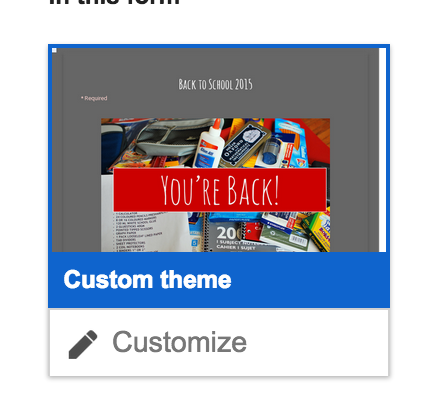
    3. To change the look of the form, select Change Theme then Customize. Play around with it to get the look you want.
    4. To see your final form, click View Live Form and share that link with you students. You will find the responses in your drive.

    Tuesday, August 25, 2015

    Get started with Digital Portfolios For Middle School Students

     Example
    The digital portfolio template that has been created is designed to work across content areas and levels. It is set up as an announcement page to allow students to post their work they wish to publish mimicking a blog post. The most current posts will be at the top and the most recent post for each subject will be showcased on the students homepage. 

    Teachers should collect a direct link to the students content area page, not the home page. For example Science Teachers will collect a link to the Science Tab. 

    You can collect these links using Google Classroom or Google Forms.

    Link For Students To Create Their Portfolio From Template


    A How To Tutorial Video


    Tuesday, August 18, 2015

    Back To School Tech - 101 #PUSDedu

    WIFI - amadordonsnet
    Hyperdoc Lessons - Elementary Projects - Middle School 
    bit.ly/btstech101
    Screen Shot 2014-08-16 at 7.22.04 PM.png


    Tech For Instruction
    Tech For Making Your Life Better
    *There’s A Map 4 That  
    *7 Things to know - Google Forms
    *Digital Formative Assessments
    *Google Sites
    *Edpuzzle
    *Workflow and Extensions
    Screen Shot 2015-06-15 at 3.26.02 PM.png
    *Flipped Learning
    Screen Shot 2015-06-15 at 3.20.32 PM.png
    *Digital Portfolios
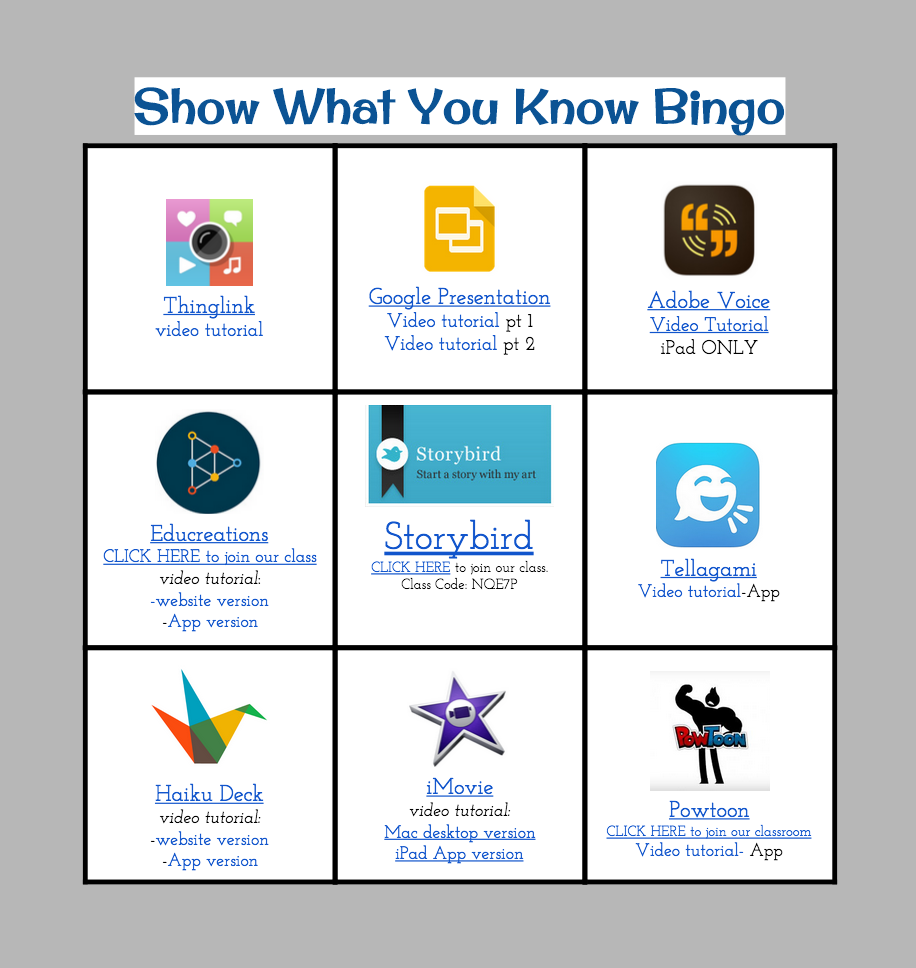
    *Show What You Know
    Screen Shot 2015-06-15 at 3.10.57 PM.png
    *YouTube
    *HyperDocs and Multimedia text sets
    Screen Shot 2015-06-15 at 3.16.03 PM.png
    *Twitter

    Friday, June 5, 2015

    Chrome Apps/Extensions to Improve Workflow and Make Your Life Better


    Have you ever found yourself completing a task on your computer thinking 
    "There has got to be a better way!"
    Well...There Probably Is
    This list of Chrome Extensions and Apps have made my life better and I hope they can help improve yours. If you know of something that is missing from this list, post it in the comments.

    Extensions: Shortcuts that perform a function, located at the top right of your browser.
    Application: Stored in your Apps, shortcuts for programs with more developed user interfaces.
    Add-Ons: Scripts designed to complete some function in Google Docs, Sheets, Forms
    All will help you bit.ly/Workbetter
    Shortened URLS
    Customize and shorten your URL - bit.ly/Workbetter
    Screen Shot 2015-04-28 at 9.31.00 AM.png
    Shorten URLs and create QR Codes to Scan
    Tab Management
    Open a window listing tabs when you have too many open
    Create sets of tabs to open together
    Images
    Take Screenshots and Annotate on them

    Edit Photos and Images
    Makes Life Better
    Remove Ads and junk on text
    Block ads on web pages
    Makes Life Even Better
    Create Docs in one click!
    Save an entire webpage as a PDF
    Video’s

    Screencasting Made Easy


    Import Slides and create a video presentation
    Text To Speech &
    Speech To Text
    Convert Text To Speech


    This App opens a notepad that will transcribe your voice. The notes can be copied and pasted over on a google doc
    Literacy Tools
    Create a citation for a site
    Annotate Text, annotations can be copied to a notepad
    Literacy Tools

    Annotate Text, and Save notes and links.
    Students can create graphic organizers, and Charts in Google Docs.
    Form Add-Ons
    Mail Merge Form Responses to a Doc
    Create Automated E-mails from a spreadsheet list.
    Not Chrome But Super Useful

    posts